Knowledge Base
Getting Started
Using Librti Features
Frequently Asked Questions - FAQs
- Unconfirmed eMail Issues
- How To Change Your Password
- How To Change Your eMail
- How To Confirm Your Account
- How to Cancel Your Membership Subscription
- How to Close Your Librti Account
- How to Create an Account on Librti
- How to Set Your Username and Custom Profile URL
- How to View and Download Your Invoices
- I Can't Find My Post
- How to block people from posting on your timeline
How to Use the Librti Newsfeed(s)
Librti has 4 separate and unique newsfeeds that allow you to customize your experience on Librti. It is important you understand how they are different, so you know which will be best for you to use, depending on what you want to see.
Personal NewsfeedThe personal newsfeed only shows the content of pages, friends and groups you follow or are connected to. This gives you a more refined view of only the posts you have indicated you are interested in.
New NewsfeedThe new newsfeed shows all the newest public posts (in chronological order showing newest first), regardless whether you follow that page or are friends with that person. This is an excellent way to discover new content.
Hot NewsfeedThe hot newsfeed is a great way to view popular posts that are getting views and engagement; a great way to find hot content to engage with and join in the conversations.
Popular NewsfeedThe popular newsfeed is unique in that it allows you to sort the feed based on either Views or Likes and within a specific time period; today, this week, this month, this year.
How to create a newsfeed post
Posting a regular Newsfeed post is quite simple and straightforward, however, there are several key points to remember.
- Use the text post to create your post. You can add basic formatting like Bold, italics and underline.
- You can add multiple links in a post using the text box
- When sharing one link, a video from an external website, or if you want a "preview" use the Add Preview Link button (Maximum 1 link)
- Use the emoticon button to add emoticons
- Use the Add Photo button to add an image to your post
- Remember to set visibility by selected where you want to Post to: General Public, Librti Members Only or others
Newsfeed - How to add links from external websites to a post
You can add multiple links to any newsfeed post you create. However, you can only add one (1) preview link.
When sharing 1 primary link to a website or a video on another website, always use the "add link" button to create a "preview link".
If you want to add multiple links to a post, simply paste those links in the main text box.
Migrating Your Organization or Group
To begin migrating your group or creating your organization on the Librti platform you will need to first create a free account by registering from our home webpage at Librti.com
After registration you will receive an email confirmation in your inbox. Please find that email and click to confirm your email address.
Your next step will be to upgrade to either a Premium or Visionary account. You will need a Premium account to create a Group, where as you will need a Visionary account to create a Business or Organization Page
Your decision should be based on how you want to use the platform and for what purpose.
A Business Page is a public facing page that represents your business, organization or brand through the content you post. You can create regular posts, upload images, videos and communicate with your followers through instant messenger. Your content can be public and viewed by members and non-members alike. Best if you want the largest possible audience.
A Group is used if you want to build a sense of community with your group members. The group has its own newsfeed, articles, videos, discussions and even its own group messenger for every member to communicate in real time in a group chat.
Read the tutorial on creating a Group Librti.com.
Visual Impairment Accessibility Settings
The default action for the Librti site is for posts to slide into view from the left, as you move down the screen. While normally this style of visually displaying the posts is pleasant and satisfactory for most users, it does cause problems for some, especially those with visual impairments.
In order to provide a more satisfactory experience, and to provide options for those with disability issues to remove barriers of use, we have added an option to disable/enable this functionality.
To change this functionality, go to the Settings option in your profile and make the changes there: https://www.librti.com/page/account-settings-info
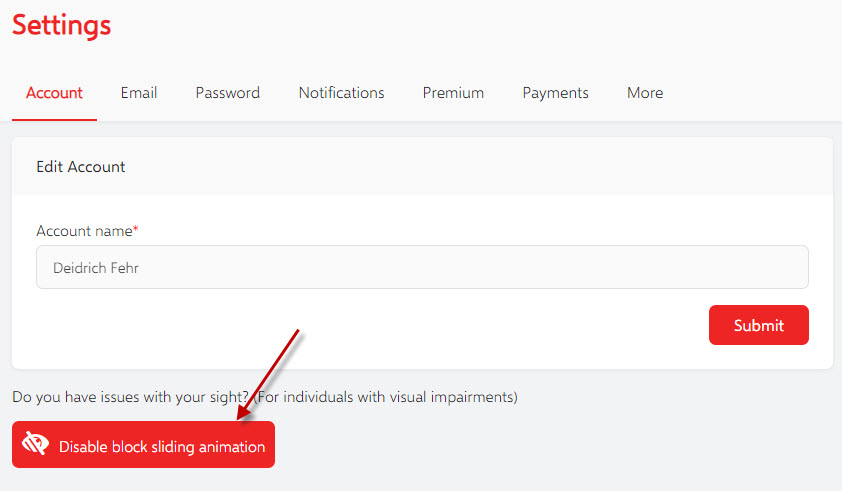
Select the ”Account” tab. Press the button on the bottom of this screen to disable this animation. Make sure your cookies are enabled, you will need to do this on every device/browser that you use for viewing Librti.
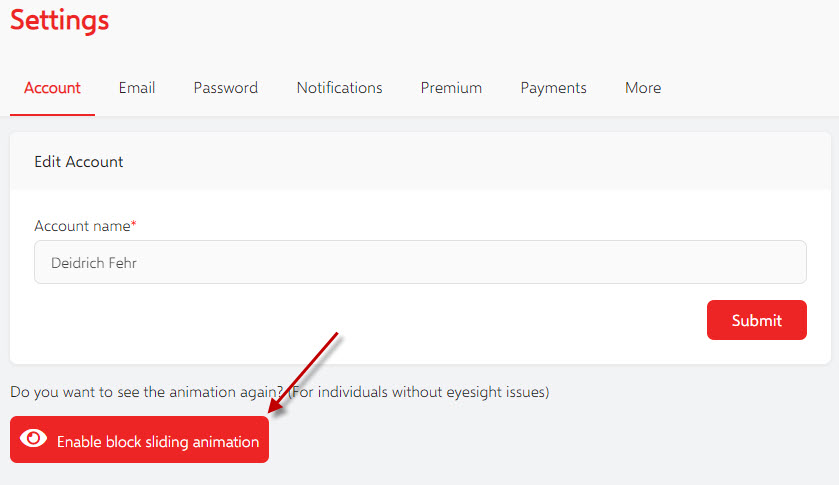
To re-enable this functionality, select the button again. This will restore the sliding animation again.
Add Librti.com to Your Home Page or Install App
In order to add Librti as an app to your mobile device or to add Librti to your homepage, you need to visit Librti.com in your mobile browser.
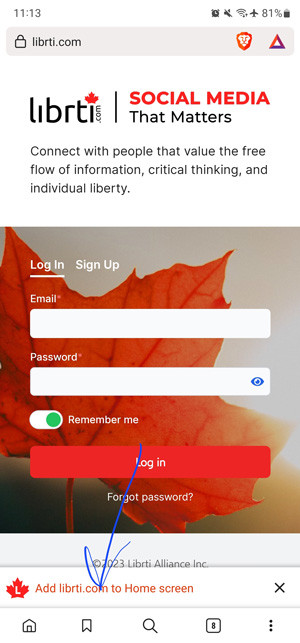
Then, you will see a banner at the bottom of the page, asking to add Librti.com to Home Screen.
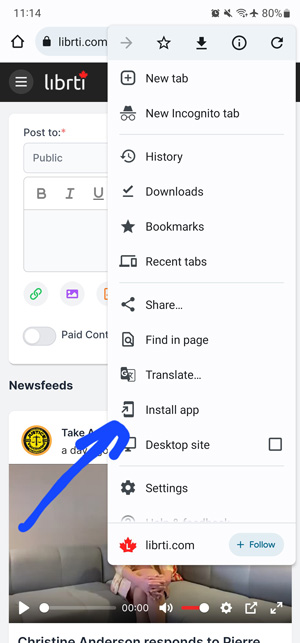
If you do not see that banner, you can open your browser menu (as per the attached screenshot) and press "Add to Homepage" or "Install App" to get the app icon on your home screen.
Using Librti Features - Groups
Librti groups are for members to share common interests.

To create a new group, click on Groups in the left side navigation pane, then select "Create a Group".

As owner/moderator of your new Group, you control the group's settings, branding, and description through your view of the group.
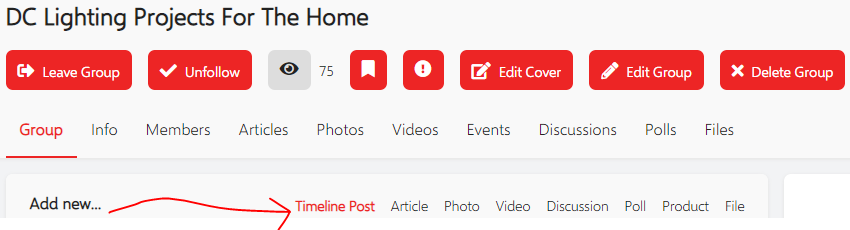
Members of the Group can filter by and/or contribute posts, articles, photos, videos, files, and discussion items. They can participate in polls and attend events for the group.
Using Librti Features - Messenger
Currently, people automatically join group-chats when they visit a group.
We are changing this soon, so that you will only join group chats after posting something in them.
For now (and in the future), to stop receiving notifications from some group chat (or any private chat that you want), you need to:
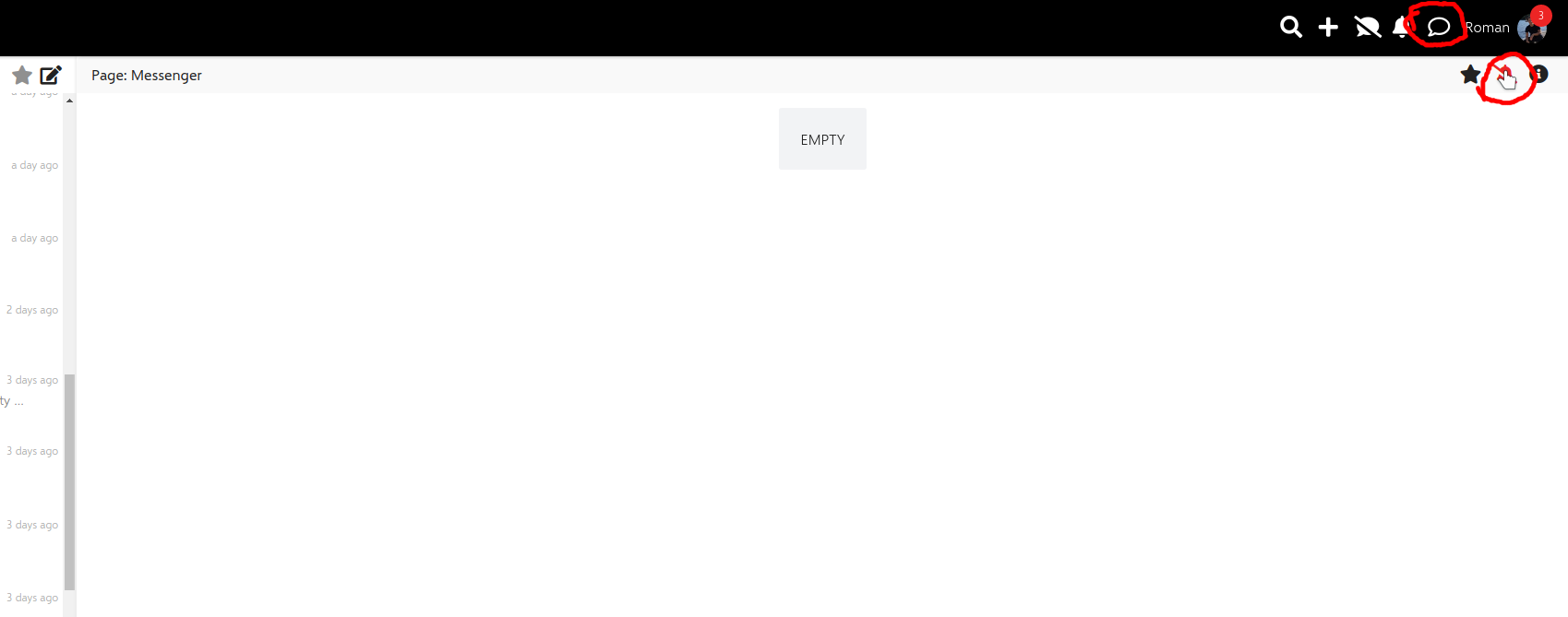
- Go to the messenger by pressing the bubble at the top (circled in red).
- Select a chat that you want to mute on the left, and then it will load to the window on the right.
- Enable the "Turn off notifications from this talk" feature, so that the bell icon has a line running through it.
- You will now stop receiving notifications from this chat. You can also use the "i" icon on the right to leave the chat entirely.
Using Librti Features - Polls
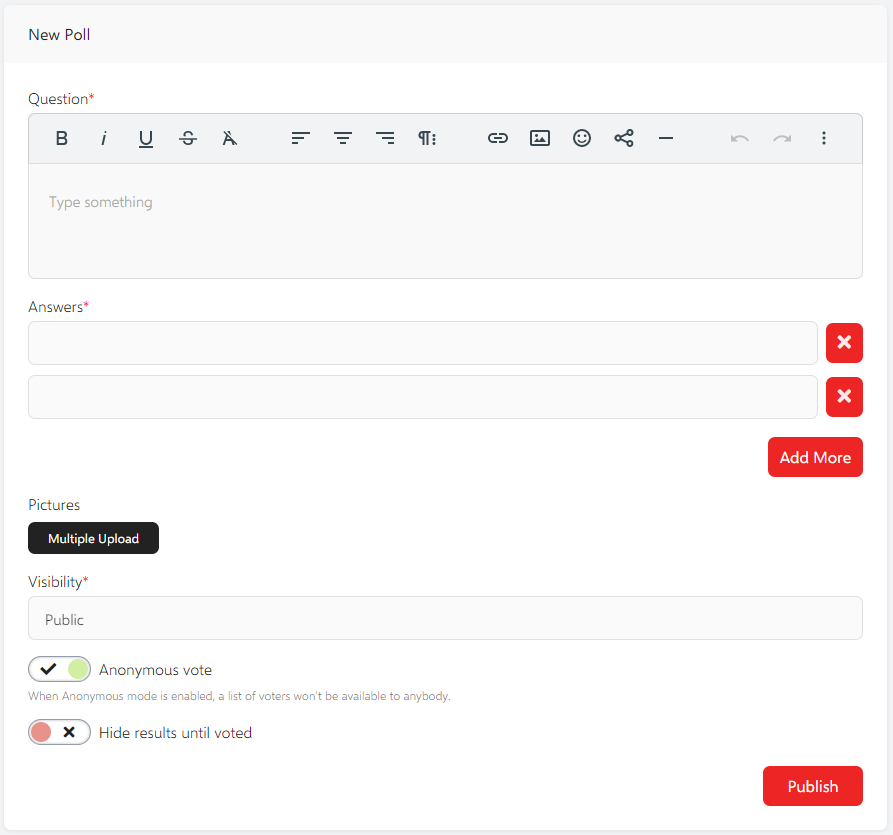
Polls can be introduced for the entire network, or for a specific Group or Community.
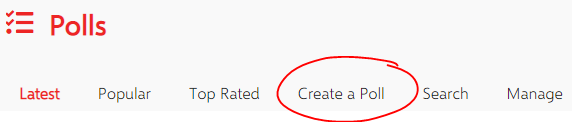
Provide your question, the possible answers, and helpful photos with the New/Edit poll panel. Set the Visibility to ensure it's available to the correct audience, decide if votes are anonymous, and whether the users can see poll results before they have voted.
Using Librti Features - Videos - Videos Visible to General Public including Non-Members
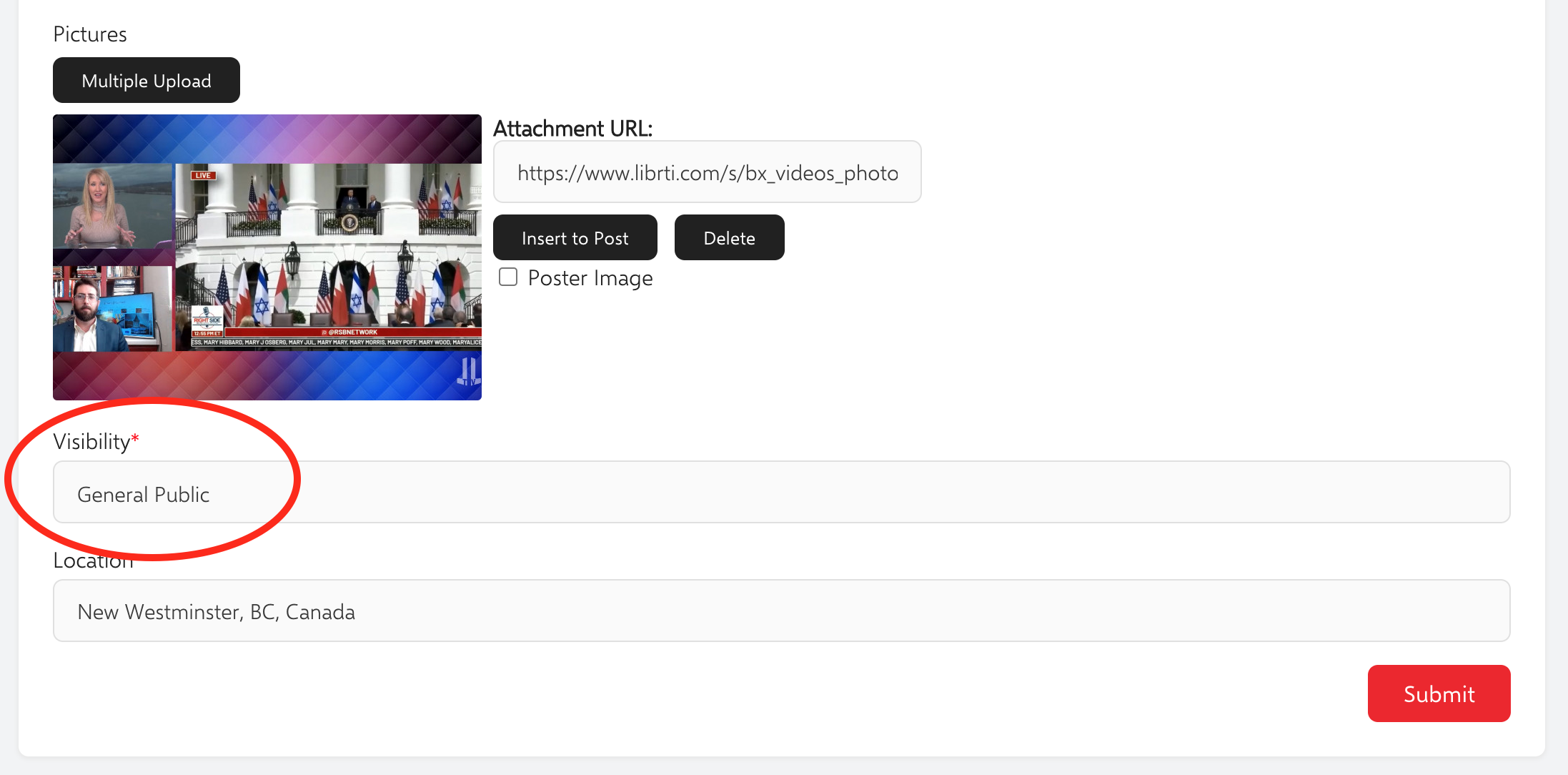
As a Publisher you want to get as many views on your videos as possible, so be sure to set Visibility for your videos to General Public.
When uploading your video look for the Visibility setting and choose General Public from the drop down money. Then click Submit.
Using Librti Features - Videos - Add a Video Thumbnail
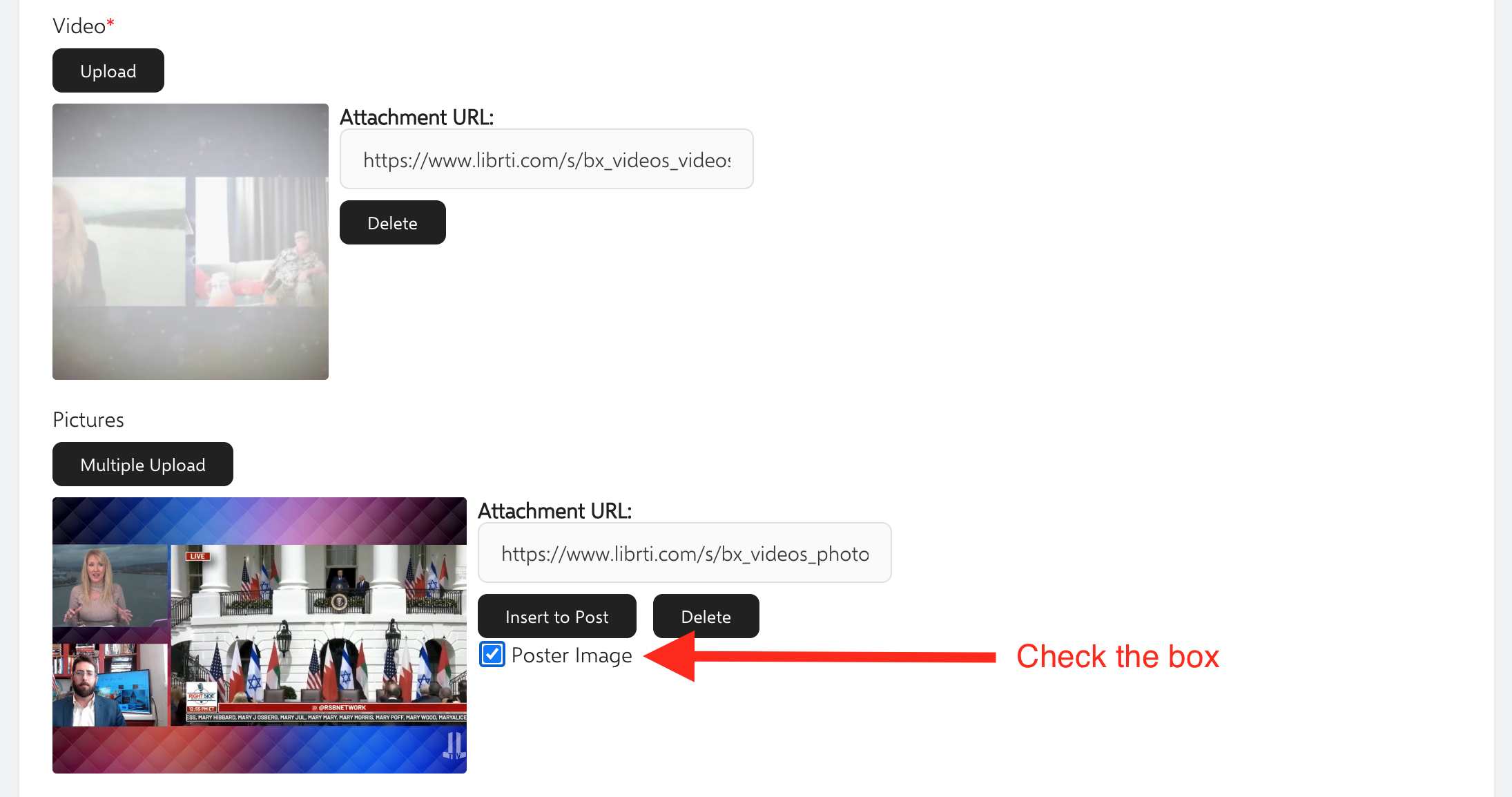
After you upload your video, you can also upload and set a custom image for your video thumbnail.
Under the Pictures section click the Multiple Upload button to choose an image from your computer.
Once added you should see a thumbnail of your image just like in the image below.
Be sure to check the box that says Poster Image. This is what will set the image to be your video thumbnail.
Click Submit when done.
#Hashtags
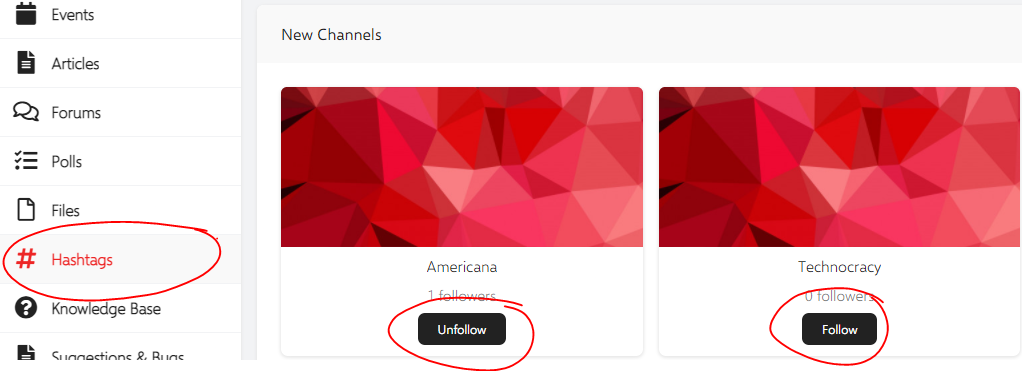
#Hashtags have replaced the "Topics" from the legacy LibertyNetwork.ca site.
Rather than requesting a new Topic for your content, simply put a #Hashtags in your post

Users can "Follow" and "Unfollow" specific hashtags in the "# Hashtags" feature, found in the left navigation pane. This will make stories appear in your Timeline if they contain the Hashtags you're following.
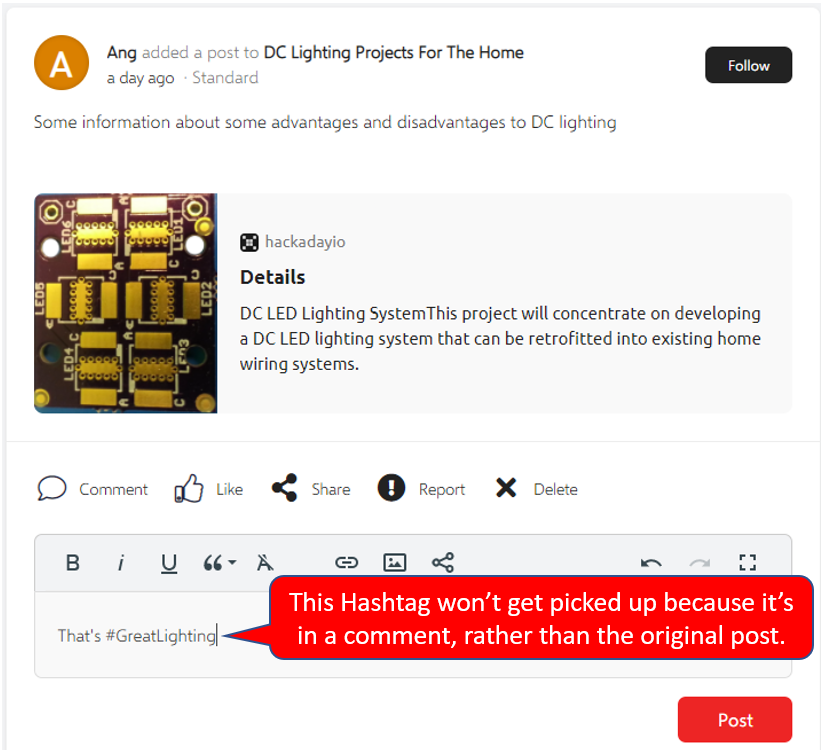
Note: Hashtags are only indexed and used when they are in the original post. Hashtags in Comments are not used.
Sharing Video Links From External Sites
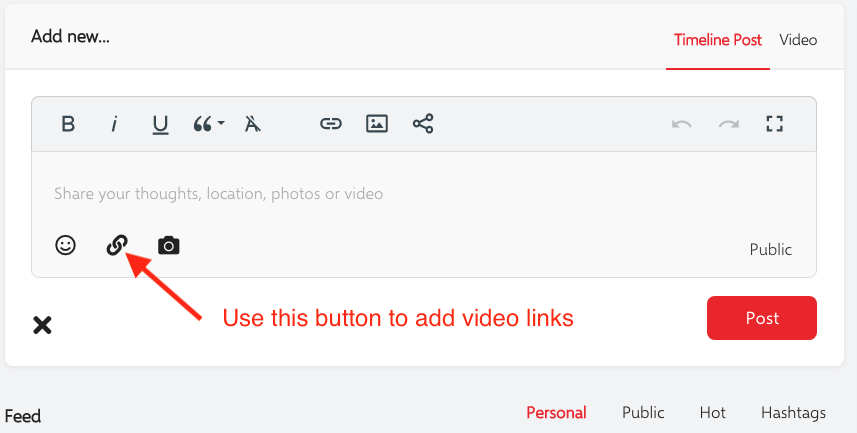
To share video links (and all external links from other sites) be sure to use the Add Link button when creating your post.
There are known issues with some website links, and the embed feature we are using.
This feature will be improved as we look to fix the issues with embedding videos from external sites.
Unconfirmed eMail Issues
If you find that your Librti.com account is still unconfirmed, here are a few things that you can do to fix this.
Please make sure that you are not using the following email providers listed below. These are not supported. We recommend using protonmail.com.
- msn.com
- msn.ca
- live.com
- live.ca
- outlook.com
- outlook.ca
- hotmail.com
- hotmail.ca
If you registered with one of those email providers, please visit the following link, https://www.librti.com/page/account-settings-email where you can change the email you registered with to another one by entering the new one as shown on this screenshot:
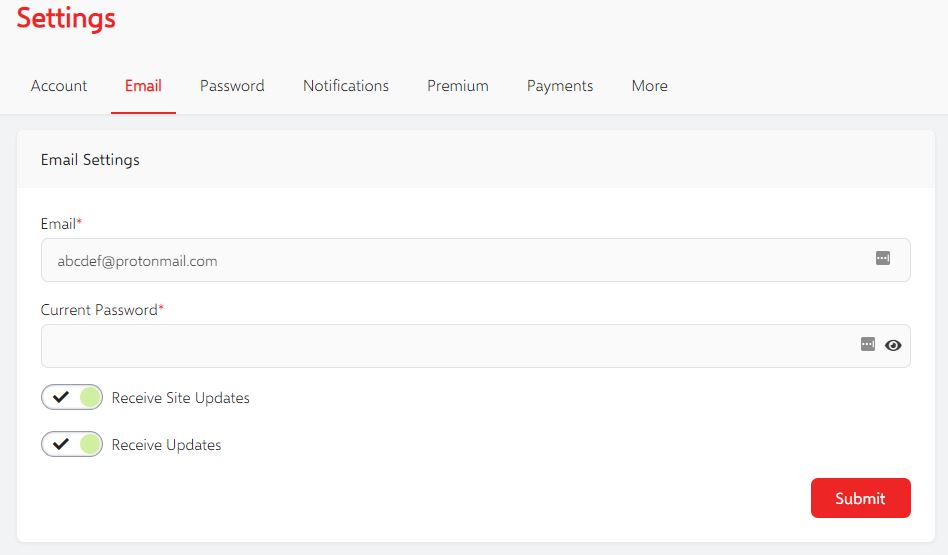
If you don't have other email addresses, we recommend using protonmail.com. Then change your email address as explained above, and press "RESEND CONFIRMATION" as shown on the following picture:
If you are not using one of those email providers, then probably your confirmation ended up in SPAM. Please re-send the confirmation by logging into the following link https://www.librti.com/page/login, and then pressing the "RESEND CONFIRMATION" link as shown in the screenshot below:
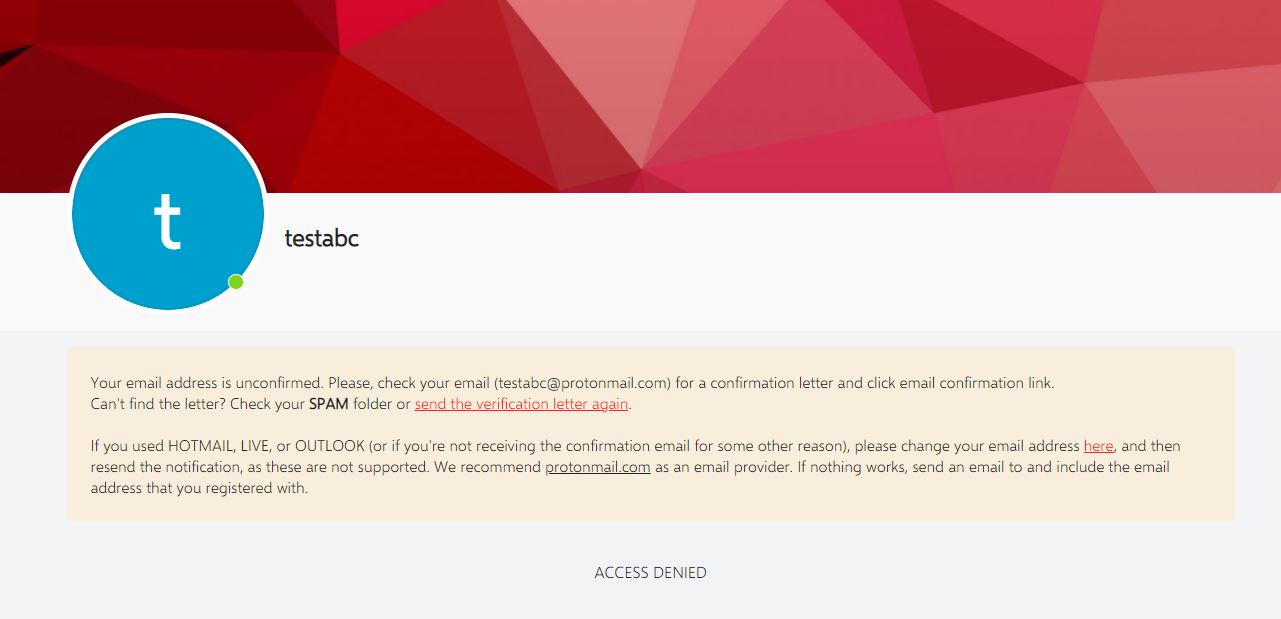
If you are having trouble logging in to your account, and you were not using one of the unsupported email providers, you can do so by visiting the forgot password page: https://www.librti.com/page/forgot-password
If you are having trouble logging in to your account, and you used an unsupported email provider, then your 2 options would be to either request a new password by contacting us at support@librti.com, or by simply re-creating your account with a different email provider.
How To Change Your Password
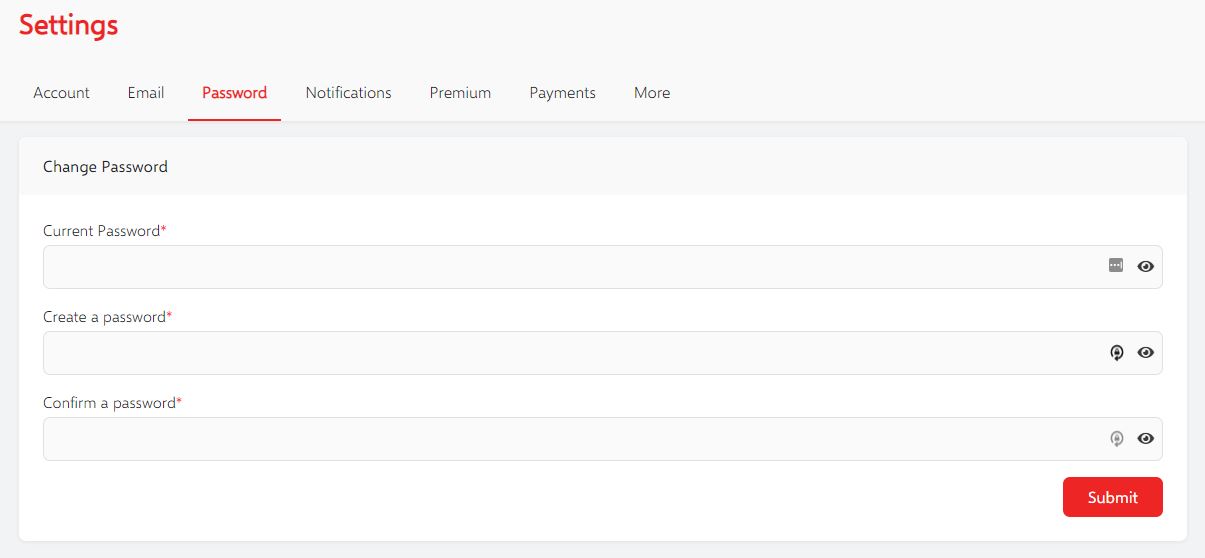
If you would like to change your password, you can do so by visiting the following page: https://www.librti.com/page/account-settings-password
How To Change Your eMail
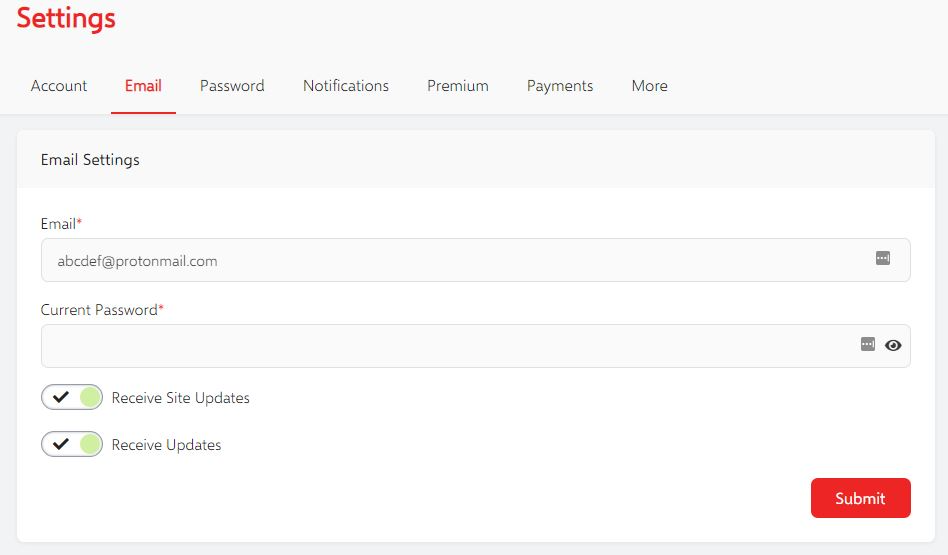
If you wanted to change your email address, simply visit the following link: https://www.librti.com/page/account-settings-email
On that page, you can change the email you registered with to another one by entering the new one as shown on this screenshot:
How To Confirm Your Account
If you find that your Librti.com account is still unconfirmed, here are a few things that you can do to fix this.
Please make sure that you are not using the following email providers listed below. These are not supported. We recommend using protonmail.com.
- msn.com
- msn.ca
- live.com
- live.ca
- outlook.com
- outlook.ca
- hotmail.com
- hotmail.ca
If you registered with one of those email providers, please visit the following link, https://www.librti.com/page/account-settings-email where you can change the email you registered with to another one by entering the new one as shown on this screenshot:
If you don't have other email addresses, we recommend using protonmail.com. Then change your email address as explained above, and press "RESEND CONFIRMATION" as shown on the following picture:
If you are not using one of those email providers, then probably your confirmation ended up in SPAM. Please re-send the confirmation by logging into the following link https://www.librti.com/page/login, and then pressing the "RESEND CONFIRMATION" link as shown in the screenshot below:
How to Cancel Your Membership Subscription
If you need to cancel your subscription on Librti.com you can do so by going to: https://librti.com/page/payment-sbs-list-my
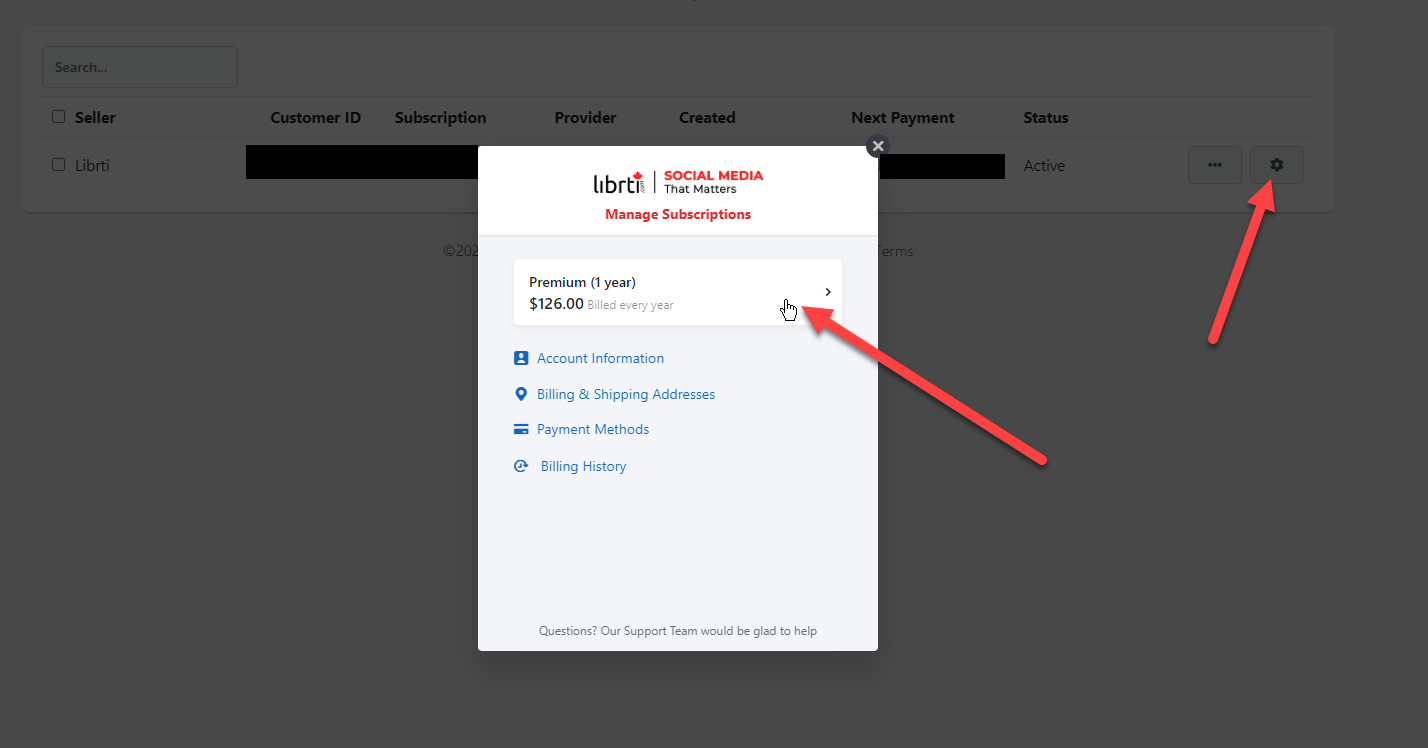
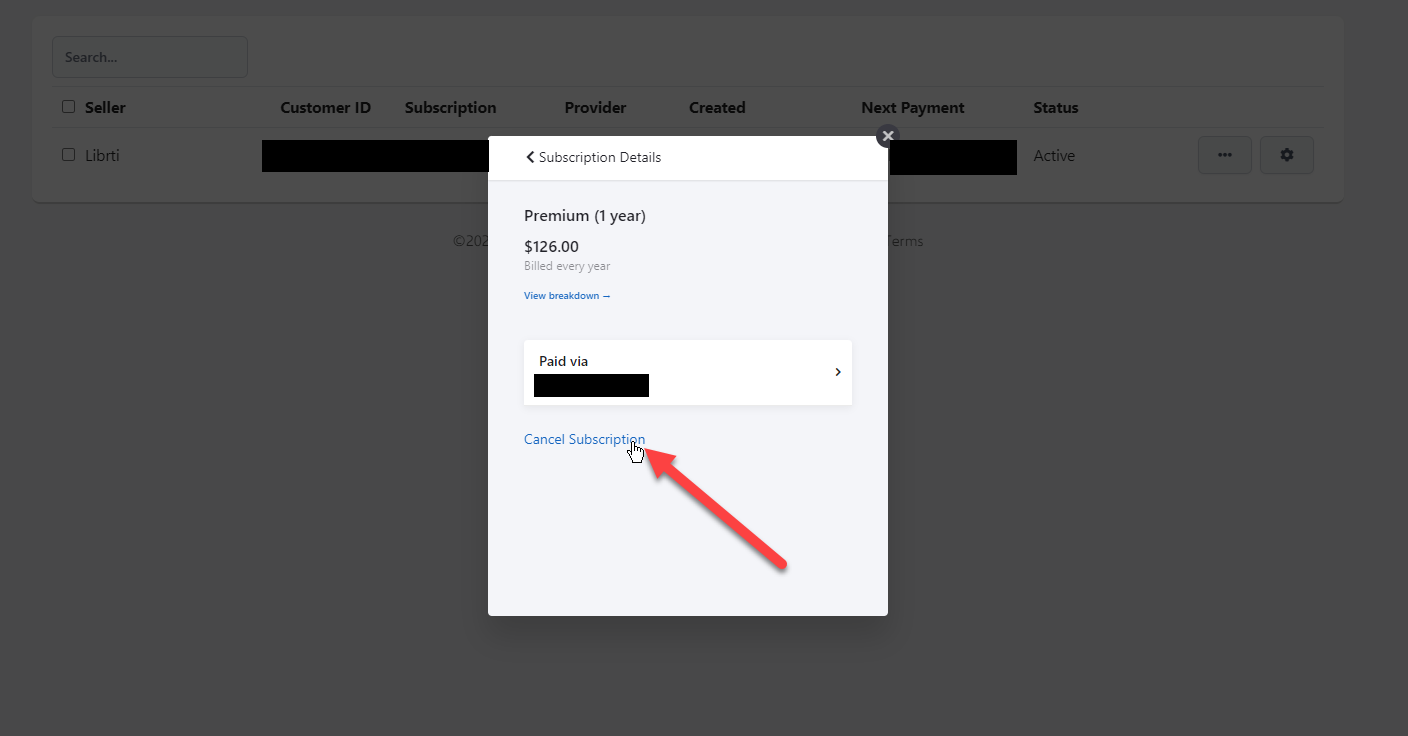
You can cancel any subscriptions from this page.
How to Close Your Librti Account
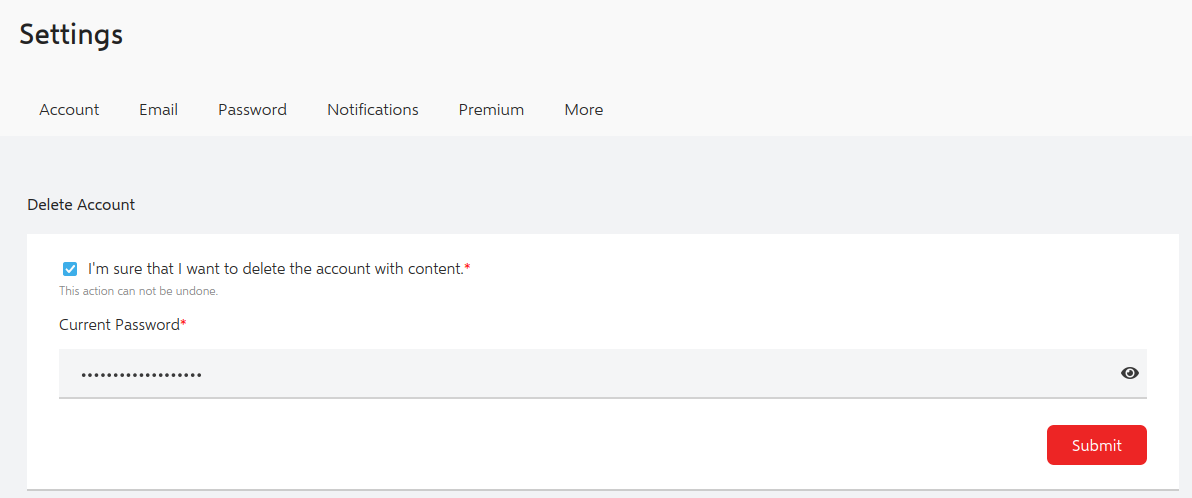
If you would like to cancel your account then please go to: https://www.librti.com/page/account-settings-delete
How to Create an Account on Librti.com
Creating an account is very easy on Librti.
Go to our main home page at Librti.com
Click the Join Now button.
Enter your name and email address.
Create a secure password and confirm it.
Choose to receive updates.
Complete the Captcha test.
Click Submit.
*Don't forget to Set Your Username
How to Set Your Username and Custom Profile URL
Be sure to set your username and custom profile URL link so you can use a nice and short URL for your profile.
Example: https://librti.com/username
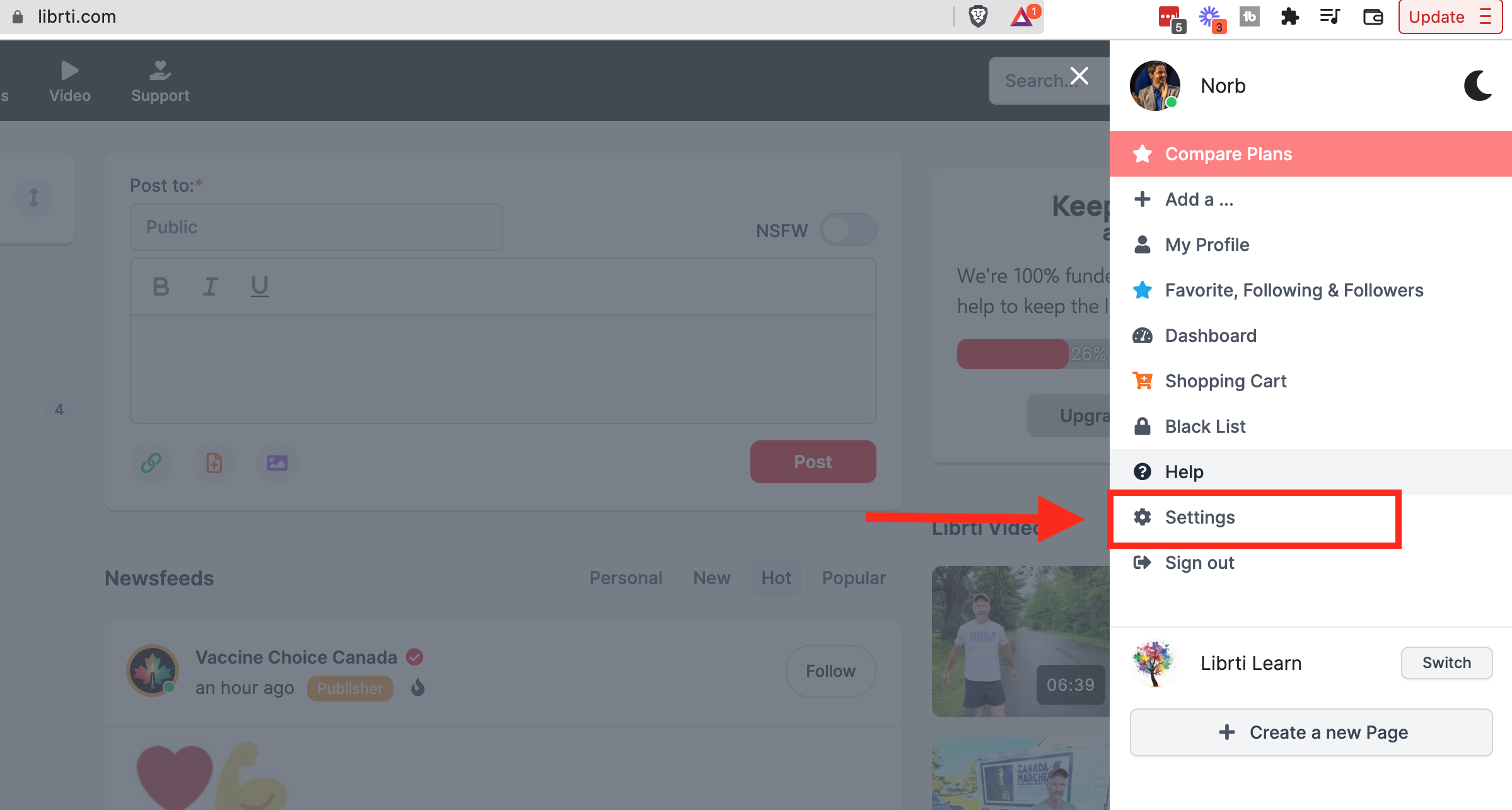
Click on your profile image in the top right hand corner to open the dropdown menu and select Settings.
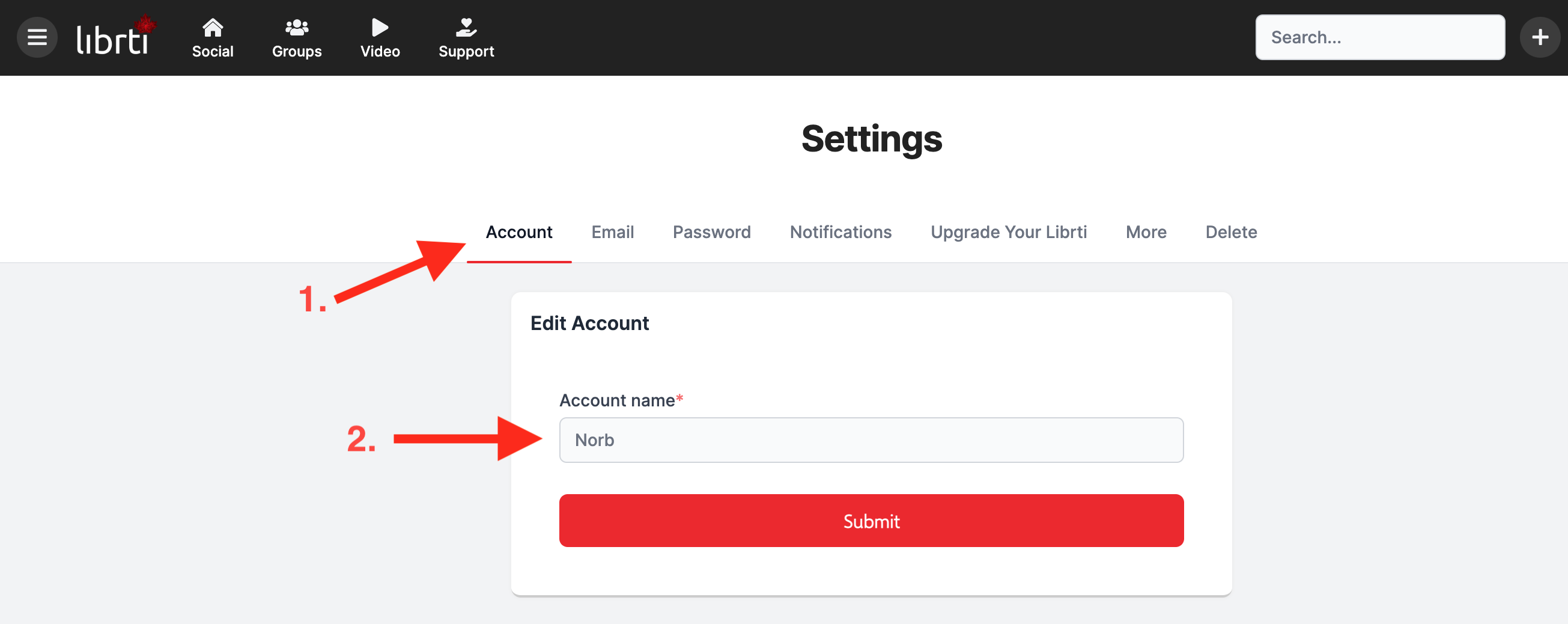
Select Account from the top navigation, and simply enter the username you would like to use. Of course it must be unique, so if another member has already used it, you will need to create a unique username.
How to View and Download Your Invoices
If you need to download invoices for your active subscription on Librti.com, you can do so by going to: https://www.librti.com/page/payment-sbs-list-my
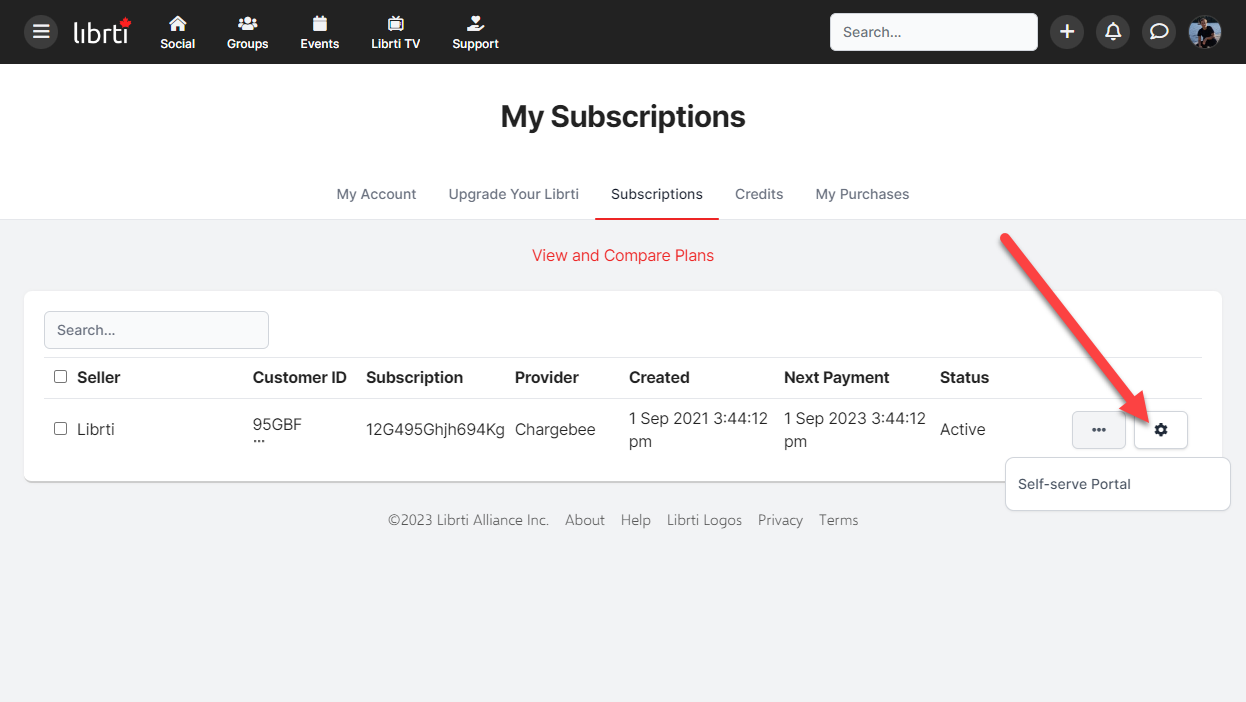
Step 1 - Press the gear icon and go to the Self-serve Portal
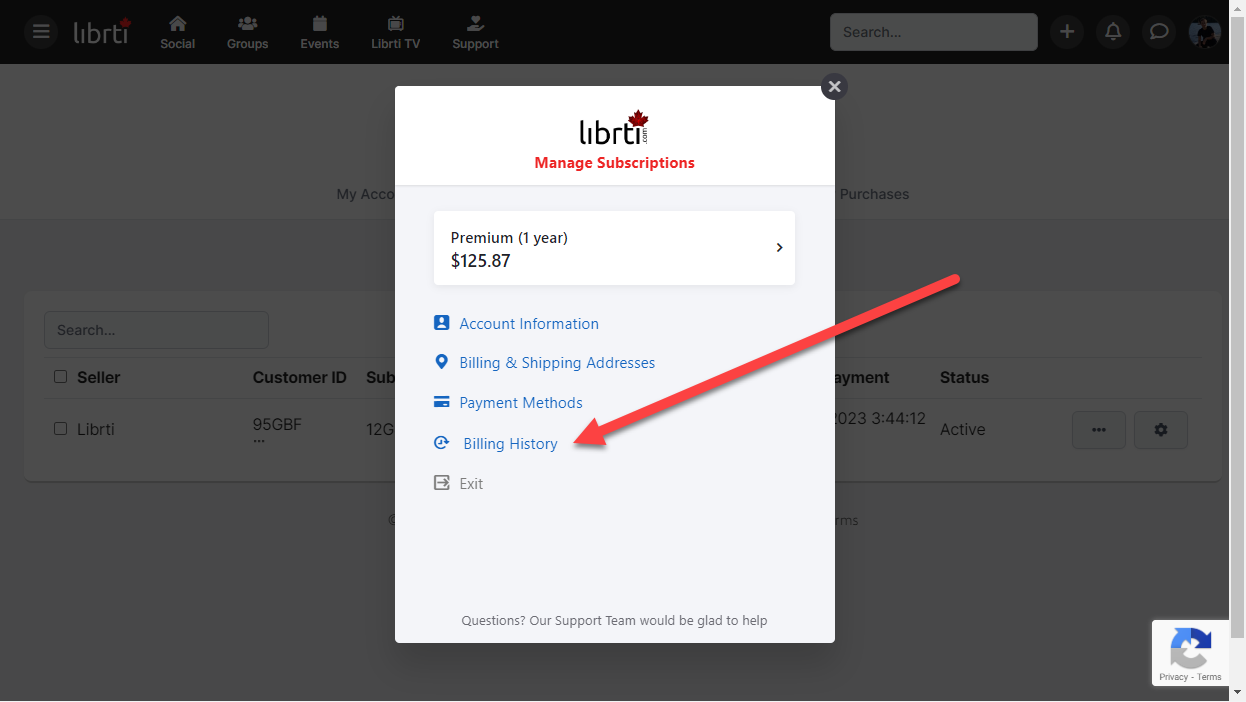
Step 2 - Go to Billing History
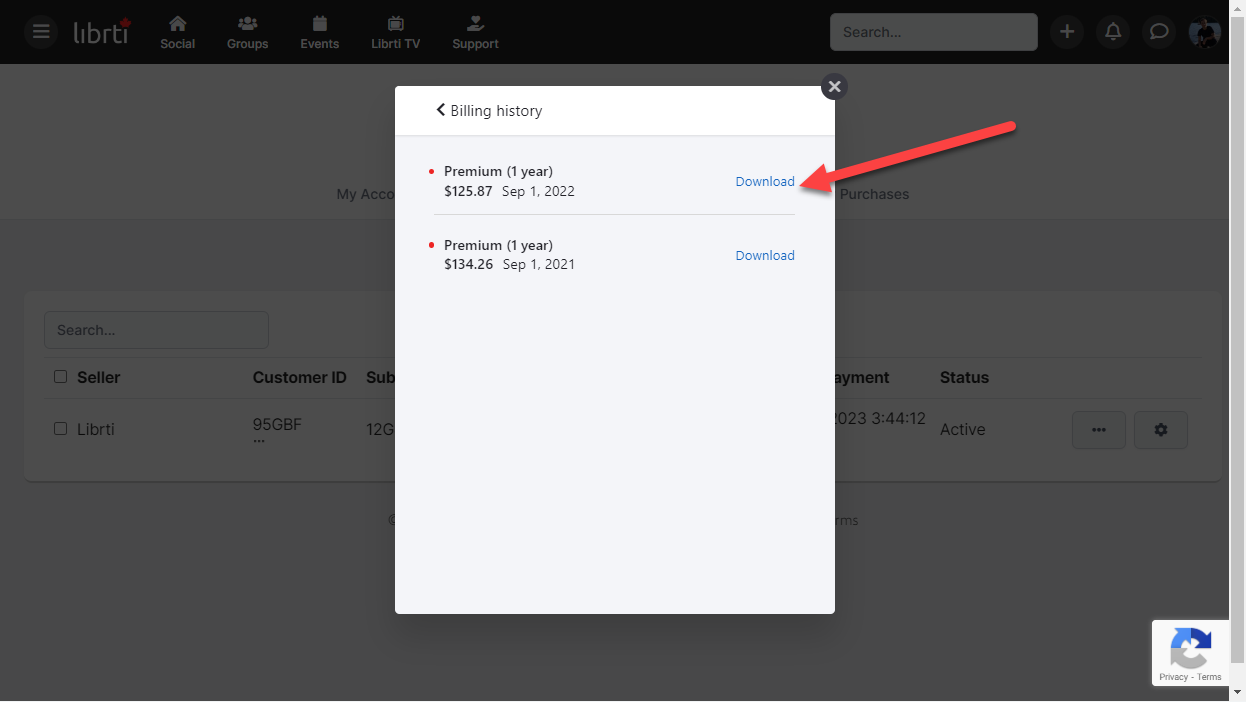
Step 3 - Choose an invoice and press Download
I Can't Find My Post
Be sure you understand the difference between our 4 different newsfeeds. Read the help article here
If you have just created a new post, and you can't find it:
- Check the Public newsfeed. This feed shows all recent posts in chronological order. So if you just recently posted it, you should be able to find it here.
- Check your Personal newsfeed. This feed shows your posts, and the posts of pages and people you follow.
- Check your Profile. Here you will see all of your personal posts.
How to block people from posting on your timeline
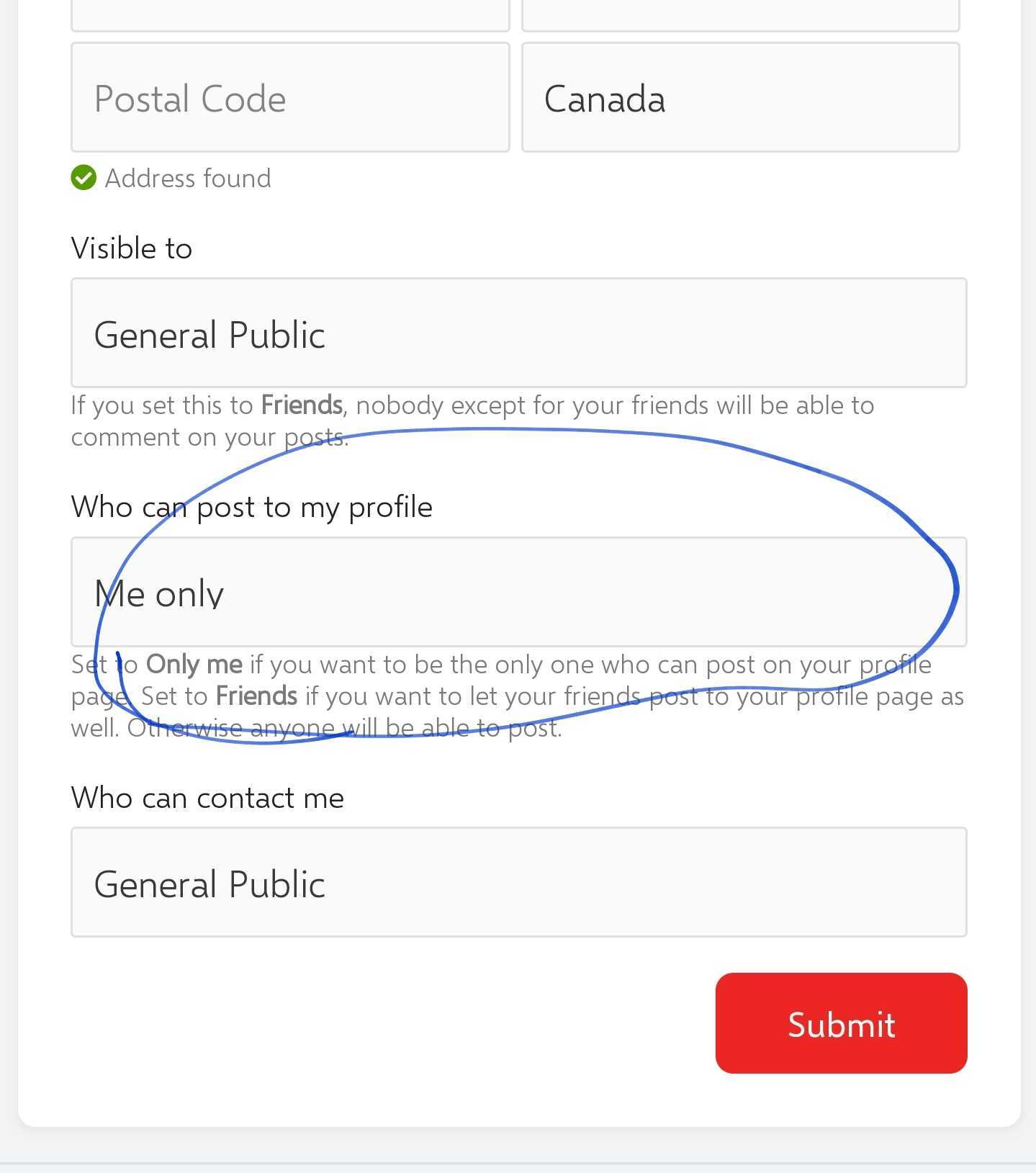
You can adjust settings to prevent others from posting on your timeline.
Go to Edit Profile under your My Profile link in the top right hand menu.
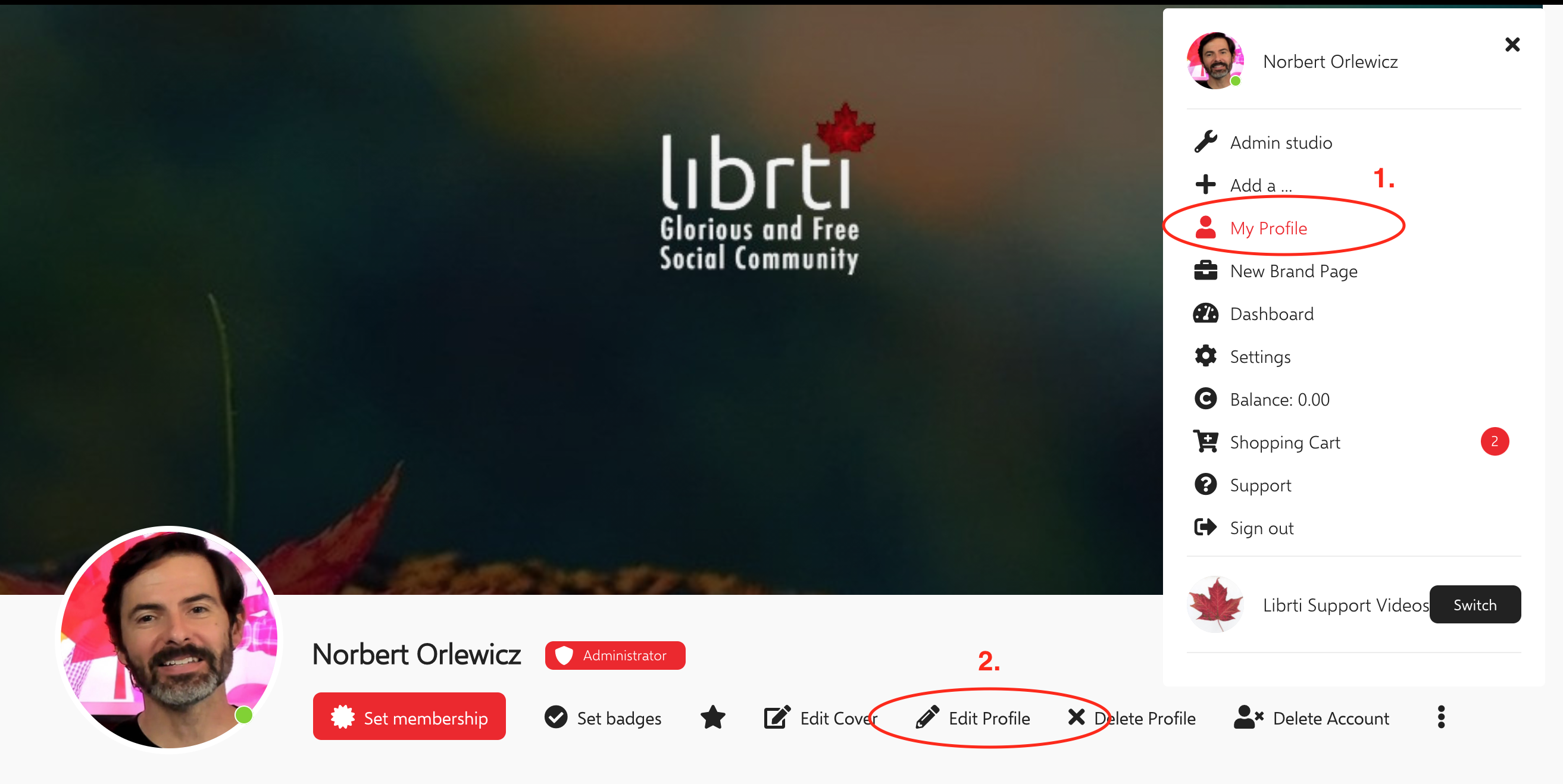
Scroll near the bottom of the page, you will see a setting Who can post to my profile. Select the appropriate option from the drop down menu.